Monday, May 22, 2017

Coveo Computed Field based on Sitecore Parent needs additional configuration

In some of our critical pieces of implementation revolving around Coveo renderings, due to our heavy hierarchical data for SEO benefit, we had multiple situations where we were having computed fields that read a piece of data from direct or in-direct parent of the current item in question in sitecore.

It was working out perfectly, no additional load time or performance issue as indexing operation should fully load what we need on the current sitecore item.  Until!!!

Recently, I ran in to this situation where say you have the whole hierarchical data already in play, which just means we did not create a child and did not publish the current item.  But, a scenario where a field that you are reading in computed field from parent actually changed.  In this situation, due to inherent behavior of how indexing would work, the parent would be re-indexed(As that is the item that is changed and hence added to delta by Coveo).  Now, we have child having an outdated computed field which in index memory still has stale data until you force build indexes or publish the child.

In real life scenario, you would take an item through workflow, in this case parent is changed, so it would enter the Sitecore workflow and will be pushed live.  But, in our case, every time a parent changes, we want the children also to re-index, so, we do not have situation of out-of-sync data.

So, additional configuration would be needed every time you have a scenario where a computed field say depends on some other item (like parent in our case or it could be something else in the sitecore tree as well).  To address this and ensure it works as expected in ideal scenario, we need to do below steps

1.  Patch to coveoItemProcessingPipeline and add a new processor - call it say 'RelatedItemsPreProcessor'
2. Implement what happens in the processor, in our case we had to get all children and add it to List of items that Coveo re-indexes when this specific item is in delta.  Quick example below, it could be changed per your needs.  There is a basic example on Coveo documentation as well.

 public class RelatedItemsPreProcessor : IProcessor<CoveoItemProcessingPipelineArgs>
    {
        public void Process(CoveoItemProcessingPipelineArgs p_Args)
        {

            SitecoreIndexableItem indexableItem = p_Args.Item as SitecoreIndexableItem;
            if(indexableItem != null)
            {
                Item item = indexableItem.Item;
             
                if(item.TemplateID.Guid.Equals(yourguidgoeshere))
                {
                    if(item.HasChildren)
                    {
                        //Get all children using query
                        string query = string.Format("descendant - or - self::*[@@templateid = '{0}' ]", YourGUID);
                        var childrenOfItem = item.Axes.SelectItems(query);
                        if(childrenOfItem != null && childrenOfItem.Any())
                        {
                            foreach(var itm in childrenOfItem)
                            {
                                //Add the item to the output list
                                var itemToBeAdded = new SitecoreIndexableItem(itm);
                                if (!p_Args.OutputItems.Contains(itemToBeAdded))
                                    p_Args.OutputItems.Add(new SitecoreIndexableItem(itm));
                            }
                        }
                    }
                }

3.  Add this new processor in your Coveo.SearchProvider.Custom.config
<coveoItemProcessingPipeline>
        <processor type="namespace.RelatedItemsPreProcessor, Extensions" />
      </coveoItemProcessingPipeline>


That is it! Post this simple steps, I can be rest assured that our data integrity would be in place post the workflow is implemented.  It is really easy to miss this in your implementation when most of your users are logging in using admin credentials for example and probably publishing sub-items every time they publish a change.  Keep an eye open for these kind of situations.

Review pipeline's available here  https://developers.coveo.com/display/public/SitecoreV3/Understanding+the+Indexing+and+Search+Pipelines;jsessionid=814B71D25E05C8684E2C029CEC416070

Saturday, May 20, 2017

When you need more than filtered results

Recently, in one of our major Coveo renderings, there was a splurge of new requirements.  Well, no huge surprise there I think.  When powerful people meet in the same room, new ideas do come by, not such a good news to us developers who have scratched their brains and pulled up hours to wrap up the initial implementation.  Although, I believe it is a good venue when time is on your side to learn something new. :)
This is exactly what happened to us, the requirement sounds pretty simple, but took me few hours to find an optimum solution which solves the problem, but, also would not involve too many changes to existing logic in play.
Goal -   Get all the results that match the filters(facets) selected by end user with out the default pagination applied (Coveo has default pagination and only pulls the values entered in Number of results value given on the rendering properties).   After few hours of going over Coveo documentation, I found something though completely not the same as what I was looking for, it kind of sparked the similar wave of implementation.
I almost always start a Q&A either to confirm my thoughts or to see if there are any other ways to accomplish the same.   In this case, what i was going for just felt right and Coveo team member confirmed the same.  You can follow the trail here.

https://answers.coveo.com/questions/10368/do-we-have-allnot-limited-to-resultsperpage-result.html

So, basically to achieve what I was looking for, you need to fire a parallel query with exact same filters based on user interaction and simply change the results to an upper bound.  It would have been nice to actually set it to Totalresults, I have not tried that, but, could work when you get the value from the correct variable.

Here is a snippet -

Coveo.$('#<%= Model.Id %>').on(Coveo.QueryEvents.querySuccess,function(e, args){
  var query = args.query;
   query.numberOfResults = 2;
//Do any other modifications on the query
Coveo.SearchEndpoint.endpoints["default"].search(query).done(function(data) {
//do any other logic on the data up here
}
 });
});

That is it, we have everything we need plus a handler over all results.  I am pretty sure it would come up often hopefully it helps any one else.

Happy problem solving folks. :)


Sunday, April 30, 2017

Coveo Sorting Part 3

Hey There!

This time soon enough, I really wanted to complete my thoughts on Coveo sorting.  We so far learnt two main things from the previous posts.  How to accomplish Coveo Sorting on a typical custom coveo rendering on a sortable field and how to make sorting work when you have Coveo Tabs that list the results out.

Next step, we will learn how we can achieve the same on Java script, there are few situations where this would come in handy.  In my example, what I was trying to do is apply Coveo Sorting on a computed field.  We are all aware that a computed field is in memory and hence we do not have a GUID we could use to work around the active issue which was present on adding default sort order to Custom Coveo rendering.  With out GUID, the sorting will not work on the rendering due to the issue, this would not be a problem if you are using latest version of Coveo, but, in our case we had no option, but, to battle this challenge.

A option that you could achieve sorting via javascript was the key to successfully getting the sort to work on a sortable computed field.

Below are few resources that helped me get started.

https://answers.coveo.com/questions/1658/how-can-i-set-the-default-sort-order-using-the-jav.html

Below is the code snippet that I plugged in my Custom Coveo View which needed the default sort order to be set


Do note that you have to set this in function, so, the properties get set properly and applied on XHR request.  Mission accomplished.

Now, I covered all the ways that we applied Coveo sorting on different style components.  Another cool thing I noticed if it helps some one is that even if your field is of type Date, do not use that option for Default Sort Order.  Just use Field as your type and all is working as expected.

Happy Problem Solving people.   Enjoy your rest of the weekend!  I am actually blogging from SF airport after hogging on organic veggie quesadilla.   ;)


Saturday, April 29, 2017

Coveo Sorting Part 2

Hi There!

Welcome back again to my three part series of sorting with Coveo.
This time, we look more deeper in to how to make your tabs have a sorted list, below are few easy steps you will need to do make sorting work on Coveo tabs.


  1. Ensure you have a Sort Component added to your presentation.  If you do not do this step, the Default sort order you would enter on Coveo Tab Component would not work and could also lead to exceptions on console.   Read more details about Coveo Sort Component here if curious https://developers.coveo.com/display/public/JsSearch/Sort+Component;jsessionid=6D194F8CCE1AC89DDB1B92C50E446CFF
  2. See screenshot below to see how a Coveo Custom Sort View would look like. 
  3. Ensure you plug in the same Default Sort Properties you have defined on your Coveo Custom Tab, which means you should match Sort Order, Field and Order exactly to same values on both your components for the sort to work fine.  
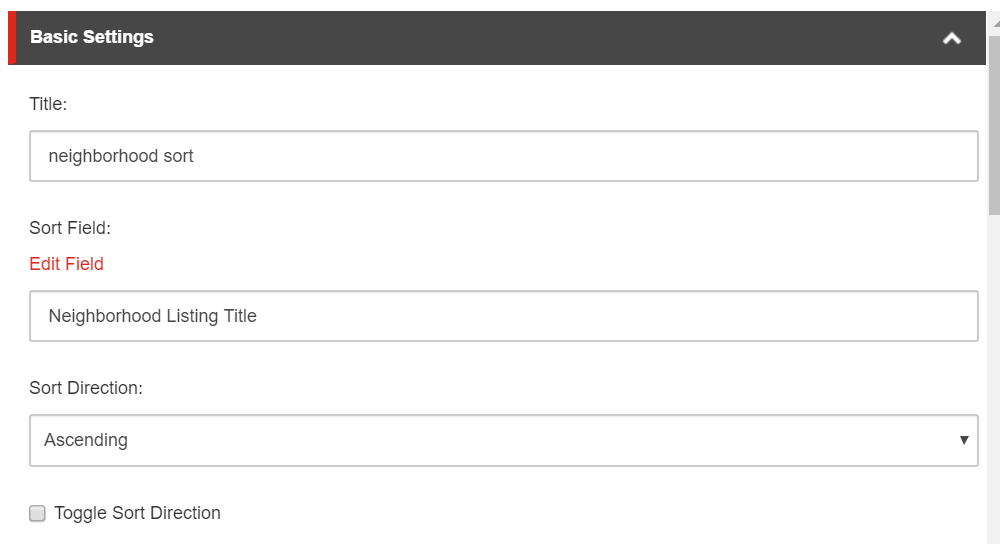
 Shown below is the view of Custom Sort View that goes hand in hand with Coveo Tab 


Shown below is the Sort Order Default defition on Coveo Sort View 

Shown below is the Default Sort order properties on Coveo Custom  Tab view.  Notice how they are exactly the same, except that on the below we have to use GUID to overcome an existing bug on version of Coveo we are using. 


That is it, after this steps, publish your changes and go to the page where you have coveo renderings with tabs, you will now see two things.  One, your sort options will be appended to the URL by default and you can also confirm the parameters passed on the Network tab in the XHR request. 
If all is well, you now have your sort order working on Coveo Custom tabs. 


Monday, April 17, 2017

Coveo Sorting Part 1 - On the Rendering

Coveo provides lot of tools and places where you could provide a sort mechanism.  First things first, sort is the most important piece that goes with listing.  If the listing of search results that you are showing to end user are not sorted per either business drive or more power to user where the user could actually select how he/she wants to sort their results is the key for the user to be able to find what they are looking for. 

Steps to get sorting working 

  1. Firstly define which field either sitecore or computed field you are going to use as a sort field.
  2. Note that OOTB, not all fields are sortable and you will need to configure and ensure that the field you are going to base the sort on is Coveo sortable.  For example - string fields are not inherently sortable while number fields are. 
  3. If the field you decided as sort field is not inherently sortable, configure it per directions listed here by Coveo documentation and rebuild your indexes.
    https://developers.coveo.com/display/public/SitecoreV4/Making+a+Sitecore+Field+Sortable
  4. After this step, always do a sanity check on admin tool that this field has a checkbox for sortable. 

Now that you have basic configuration ready, the next step is fairly simple.  Go to presentation on the template which has your coveo rendering on which you would like to apply sort.  Pull open the properties of Coveo rendering and you will see a Default Sort order section like below.  Input three parameters it looks for - 

  • Default Sort Type - Field | Date | Relevancy - I found Field and Date to be extremely useful 
  • Default Sort Direction - Ascending | Descending 
  • Default Sort Field - You have a pick list provided by Coveo which is a searchbox where you can type and find the sortable field you are looking for.  We are using December 2016 version of Coveo which has an active bug, so, we had to use GUID as a workaround instead of using field picker.   See an example on the screenshot below 

After you pick everything coveo is expecting, give it a spin -  Go to the page where this rendering exists and check what is happening on the query request.  You should see the below two populate with the field you picked and direction you mentioned on default sort order.  If you do not see this then the sort would not be working and you will have to debug further.  Couple times, it is due to presentation being overridden, so try resetting it before you panic. 😱


Now, all this works beautifully if you have just the basic Coveo custom rendering on your page.  Now, how will you make sort work with tabs, how about facet ordering.  What happens when you have both going.  How about if you need to apply sort ordering on a custom or computed field.  I will post details about these scenarios soon.  More to come later....Sorting O what fun. 😆

Happy Sitecoring and have fun every one.  Between, on a side note, last month I presented at LASUG about Coveo, if you wanna to check it out here is the link to youtube video.  Post your comments.


Monday, February 27, 2017

Helix/Habitat for TDS Setup Steps

The buzz around is that Sitecore is heavily pushing for Helix/Habitat and making it a standard.
If you have not already read through the core concepts, there is some awesome documentation that can you started here on Helix concepts -
http://helix.sitecore.net/

Now, once you read through this, I bet just like me you will be tempted to get a copy for yours.
I use TDS for my everyday chores, so I got mine from here -
https://github.com/HedgehogDevelopment/Habitat/tree/TDS

fun fact: Habitat team maintains two trees of the sample project for Habitat, one for TDS and the default one uses Unicorn.(https://github.com/Sitecore/Habitat)

I really wanted to play with this after reading through bits and pieces of the information and would like to share my experience of setting Habitat on my local with you all.

I am ready to get started with Habitat, are you ready?

First things first,  get the repo from the Githib for TDS Habitat.  Please note, the clone URL setup on the github is not cloning the TDS version(may be not setup correctly, I will log a comment).  So, for now, please click on Download Zip instead of cloning the repo to continue with local set up.


After this step, I got some serious code on my local.   For the next step, I needed SIM which I already had on my machine, so went straight for it.  I went ahead and installed a fresh Sitecore Instance 8.2, Update 1 per recommendation.  Not sure if it is my internet connection, it did take some time. :)

Next step is to install webforms for marketers.  You can get this as a package specific for the sitecore version and can install through the site once it is up.  In my case here is the version needed for Sitecore 8.2, Update 1

https://dev.sitecore.net/Downloads/Web%20Forms%20For%20Marketers/82/Web%20Forms%20For%20Marketers%2082%20Update1

Important point to note here - When you install WFFMModule from link above, do not think it is a sitecore package, unzip the folder and choose the one based on your server environment, mine is obviously local so I picked the basic package for install.  After zipping pick the one highlighted below when installing from Sitecore Package Installer.


After this step, please rebuild the whole solution and ensure there are no errors.  Then, right click on your solution and select deploy.  Quick note on deploy, It takes a while as there are lot of solutions and lot of items to deploy, it did time out for me once, I did a redeploy and it worked.

Login to sitecore admin(admin/b) and Publish the site.  Go to your local URL and ensure the site is up and running(screenshot below).  Now, for the next steps, I will explore the solution and excited to see what Helix/Habitat could do for us. :)


Tuesday, February 14, 2017

Sitecore Schedule Tasks - CM/CD Environment

I recently had to set up sitemap on CM/CD environment where we had the typical sitecore configuration one CM and two load balanced CD servers. 
I wanted to run some experiments to see optimal items and configuration needed to ensure both CD's have the sitemap.xml auto generated. 
I did this because I was curious to know why folks said we need multiple same scheduled tasks one for each server node.  I was definitely positive that I can pull this off with just one scheduled task across all environments.  Turns out, I was over ambitious!

Below are the experiments I did to content my curious brain. 

Case 1 -  Only one task across all environments

My ambitious drive of making it work with just one scheduled task, in our patch file where we have the path for scheduled tasks defined which would be incorporated on showconfig, I ensured that all the servers pointed to the same path. 
For example - 

     <agent type="Sitecore.Tasks.DatabaseAgent" method="Run" interval="00:10:00"             name="Master_Database_Agent">
        <param desc="database">master</param>
        <param desc="schedule root">/sitecore/system/tasks/schedules/CM</param>
        <LogActivity>true</LogActivity>
      </agent>

Results 

Post this setup, all is well on CD1, the sitemap was generated and by the looks of it covered all URL's of items in content and protocol was followed fine as well per setup. The issue is the CD2, turns out sitemap is not updated on this server. 
I checked the logs on CD2 to see if there was an error, there were none related to sitemap generation, but, one thing I did notice on the logs is that - every time I would see that the schedule specific to refreshing sitemap would come back as not due. 
In the logs, I would see entry like below - 

ManagedPoolThread #3 18:19:38 INFO  Scheduling.DatabaseAgent started. Database: liveweb
ManagedPoolThread #3 18:19:38 INFO  Examining schedules (count: 1)
ManagedPoolThread #3 18:19:38 INFO  Not due: Refresh XML Sitemap
ManagedPoolThread #3 18:19:38 INFO  Job ended: Web_Database_Agent (units processed: 1)

This would mean that every time the scheduling agent runs it finds out the task has already been run per schedule and does not run it any more. 

Case 2 -  One task per server 

Now, the case which I did not wanted to do, I always strive to avoid duplication which would mean more management and more configuration, but, I had to test and ensure load balanced servers have sitemap served properly when crawlers do their stuff. 

What I did to test this case is to duplicate the scheduled tasks one for each server, so on my master database I would have three different nodes and scheduled tasks and on each server the path on configuration would be different as well. 

On CD1 - 
 <agent type="Sitecore.Tasks.DatabaseAgent" method="Run" interval="00:10:00" name="Web_Database_Agent">
        <param desc="database">liveweb</param>
        <param desc="schedule root">/sitecore/system/tasks/schedules/CD1</param>
        <LogActivity>true</LogActivity>
      </agent>

On CD2- 
<agent type="Sitecore.Tasks.DatabaseAgent" method="Run" interval="00:10:00" name="Web_Database_Agent">
        <param desc="database">liveweb</param>
        <param desc="schedule root">/sitecore/system/tasks/schedules/CD2</param>
        <LogActivity>true</LogActivity>
      </agent>

 Results - 

In this scenario and setup, everything works well and servers are happily serving the most updated sitemap.xml 

So, the bottom line is,  if you want a task to run on all servers at least once and can not possibly live with running just once regardless of which server it ran on, then, we need to duplicate and there seems to be no option. 

Do you all have any other ways to make this work with no duplication of tasks when both load balanced servers are pointing to same database. (web)?

I would be super curious to know, do post comments or suggestions.